KoolDown: Screen Time Limits for Your Kids' Windows Laptops
KoolDown sets daily screen time limits on your kids' Windows laptops, enforced on the laptop itself. Give more time, lock, or change a limit from your phone, wherever you are.
Set a daily limit for each child in 15-minute steps. KoolDown counts the time on the laptop and enforces it there, even when the laptop is offline.
Give 15, 30, or 60 extra minutes, lock a laptop, unlock it, or reset the day from your phone. An online laptop applies the change within seconds.
See minutes used and minutes left for each kid, whether they are using the laptop right now, and when the laptop was last seen.
Invite the other parent with full control, or a grandparent or carer with view-only access. Each person signs in with their own account.
Make a one-time code on the web, install KoolDown on the laptop, and enter the code. Every kid's Windows account is picked up automatically.
Every action is logged with who sent it, when, and whether the laptop applied it. No guessing about who unlocked what.
See It In Action
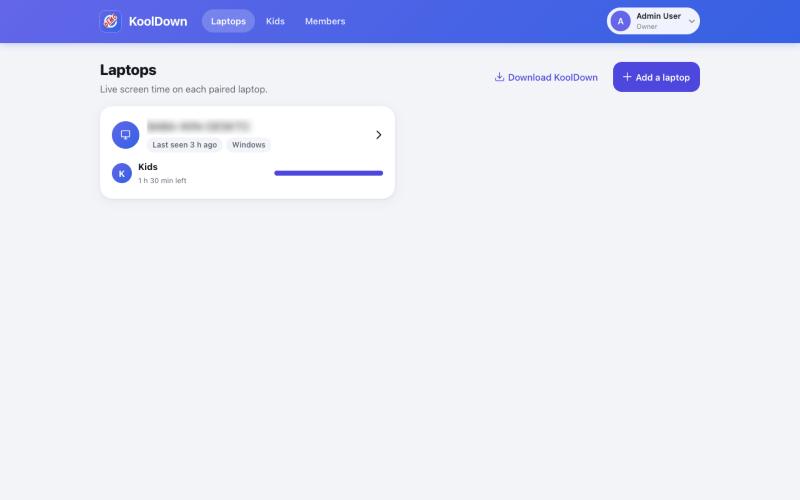
Laptops: every paired laptop with each kid's time left at a glance.
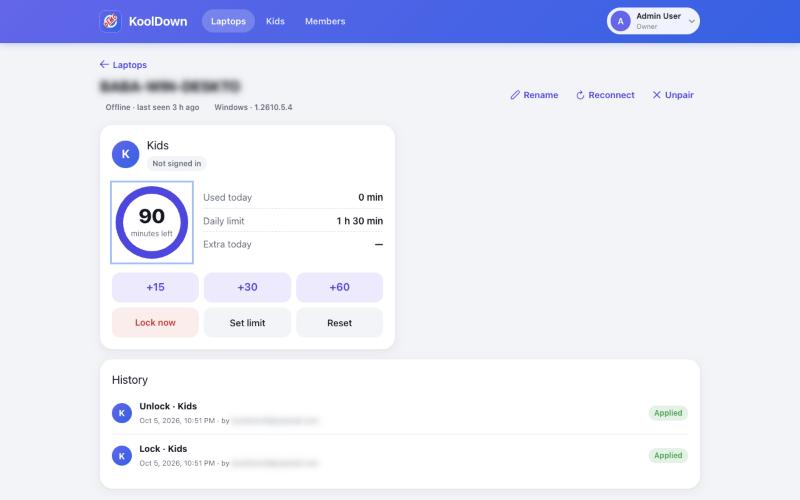
Laptop page: minutes left, daily limit, +15/+30/+60, lock, and a full action history.
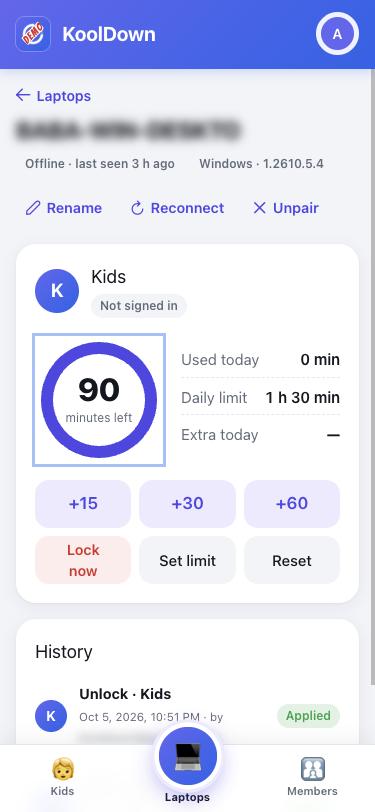
The same controls on a phone.
Live at kooldown.null2infinity.com
KoolDown is screen time control for children’s Windows laptops. A small service on the laptop counts each kid’s time and enforces the daily limit on the spot. You manage everything from a web app on your phone or computer: grant more time, lock the laptop, or change a limit without being in the same room.
Quick facts:
- Best for: Parents and guardians of children who use a Windows laptop at home
- Core capability: Daily screen time limits per child, enforced on the laptop itself
- Parent controls: Web app that works in any phone or desktop browser
- Laptop requirement: Windows, with an administrator account to install
- Setup time: About 10 minutes for the first laptop
- Pricing: Contact us for pricing
What Is KoolDown?
Most screen time tools depend on a cloud service to decide when a child’s time is up. If the connection drops, so does the control. KoolDown works the other way around. The laptop keeps the clock and enforces the limit by itself. The cloud only passes your instructions along.
That design has two practical effects. A child who unplugs the Wi-Fi does not get extra time, because the laptop keeps counting offline. And if KoolDown’s servers are ever down for maintenance, limits keep working. Only remote control pauses until the connection returns.
Key Features
Daily Limits Per Kid
Each child gets their own daily limit. Set it in 15-minute steps, or pick a preset from 30 minutes to 4 hours. A limit of 0 blocks the account for the whole day.
A limit change applies from now on, and any extra time you already gave that day is kept. When time runs out, KoolDown locks the account and can block sign-in, unless you grant more.
Remote Control From Your Phone
Open the laptop in the KoolDown app and use the buttons on each child’s card:
- Give 15, 30, or 60 extra minutes
- Lock now, or unlock
- Set a new daily limit
- Reset today, which clears the child’s usage and extra time for the day
An online laptop applies your change within seconds. If the laptop is offline, the command waits and is delivered when the laptop reconnects, as long as that happens within 15 minutes. The app shows “sending” or “queued until the laptop is back” so you always know where a command stands.
Live Status
Each laptop shows whether it is online or when it was last seen. Each child shows minutes used and minutes left as a progress ring, plus whether they are using the laptop right now, locked, out of time, or blocked from signing in.
Both Parents, and Carers
A family in KoolDown is a shared space with roles:
- Parent: gives time, locks, and sets limits
- Parent who can invite: everything a parent can do, plus inviting and managing other members
- Viewer: sees laptops and time left but cannot change anything, which suits a grandparent or carer
Invited members get an email and set up their own sign-in. Every family’s data is separate from every other family’s.
Every Kid’s Account, Picked Up Automatically
KoolDown watches every Windows account on the laptop that is not an administrator. It matches each account to a kid by name or adds a new kid with the default limit. Accounts created later are picked up on the next scan, about five minutes after they appear. Administrator accounts are never limited, so a parent can always sign in and fix things.
History
The laptop page lists every action: what was sent, for which child, who sent it, and the result. Time given, locks, resets, and limit changes are all recorded.
How It Works
1. Create Your Family
Sign up and sign in. Your family is created for you, and you are its owner.
2. Make a Code
Go to Laptops, choose Add a laptop, and make a code. It looks like K7QM-4XRP-9TWD, works once, and expires after 24 hours. Unused codes are listed on the same screen and can be revoked.
3. Install KoolDown on the Laptop
On the child’s laptop, sign in as an administrator and open the download address shown in the app. Unzip the file, run Install KoolDown, and enter the code when it asks.
4. Set Limits
The laptop appears in your app, named after the computer. Each kid’s account is already watched with the default limit. Adjust limits, rename kids, and invite the other parent from there.
Reconnecting a Laptop
After a Windows reinstall, a KoolDown reinstall, or a long offline stretch, make a Reconnect code from the laptop’s page. The laptop keeps its name, kids, limits, and history, and its old connection stops working.
Built to Be Hard to Cheat and Safe to Trust
The laptop is in charge. Limits are counted and enforced on the laptop, so a child cannot gain time by blocking the internet.
Parents only. Only signed-in parents can send commands. A laptop cannot issue commands, see other laptops, or enroll itself without a code you made.
A short list of actions. Remote control is limited to grant, lock, unlock, set limit, and reset. KoolDown cannot be told to run anything else on the laptop.
No local back door. There is no control panel on the laptop that a child can reach. Local changes need an administrator, and the Windows administrator password is the proof that it is a parent.
Secure by design. Laptop codes, secrets, and tokens are stored only as hashes. Families are isolated from each other, and unpairing a laptop cuts its connection immediately.
What KoolDown Does Not Do
KoolDown is a time limit tool, not a content filter or a monitoring tool. It does not read messages, record screens, track location, or block individual websites or apps. It supports Windows laptops only today. Phones, tablets, Macs, and Chromebooks are not covered.
Who It’s For
- Parents whose kids share or own a Windows laptop for school and play
- Families who want a firm daily limit without negotiating every evening
- Parents who travel or work late and still want to adjust time from afar
- Households where grandparents or carers help supervise and need to see status
Getting Started
What You Need
- A Windows laptop for each child, with an administrator account you control
- A phone or computer with a web browser for the parent app
- An internet connection for setup and for remote control
Setup Checklist
- Sign up at kooldown.null2infinity.com and create your family
- Go to Laptops and choose Add a laptop to make a code
- On the child’s laptop, sign in as an administrator, download KoolDown, and run the installer
- Enter the code when the installer asks
- Check that each kid’s account appears with the right limit
- Invite the other parent or a carer under Members
If you skip the code during install, KoolDown still applies default limits to every non-administrator account. You can connect to the cloud later by running kooldown connect in an administrator terminal on the laptop.
Part of the KoolHub Family
KoolDown runs on KoolHub, the same platform behind KoolKamp, Khatah, and SafeTrip. That gives it sign-in, password reset, family roles, and data isolation without a separate system to trust. KoolDown is the first KoolHub product built for homes instead of businesses, so it has its own friendly look and a family-first app experience.
Availability & Pricing
KoolDown is live at kooldown.null2infinity.com. Contact us for pricing and help getting your first laptop set up.
Chat with us on WhatsApp
Message us on WhatsAppFrequently Asked Questions
Get in touch or chat on WhatsApp to try KoolDown with your family.
Ready to build something great?
Partner with Null2Infinity for secure, innovative software solutions tailored to your business. Get in touch today.